

Your iPhone holds some of the most important parts of your digital life. From personal photos and banking apps to saved passwords and private conversations, almost everything is stored inside the device. Over time, however, iPhones can start showing problems. Apps may crash repeatedly, storage may fill up quickly, the phone may become slow, or software bugs may make the device frustrating to use. In many situations, learning how to factory reset iPhone correctly becomes the best solution. A factory reset removes all personal information, clears system errors, and restores the device back to its original settings. It is also one of the safest things to do before selling, trading, or giving your phone to another person.
Many users worry that resetting an iPhone is difficult or risky, but Apple has made the process simple when done properly. The key is understanding the correct steps before starting. In this detailed guide, you will learn everything from backing up your data to resetting your device using Settings, Recovery Mode, or iCloud. You will also discover common mistakes people make, how to avoid data loss, and what to do after the reset is complete. By the end of this article, you will know exactly how to reset your iPhone safely and confidently.
What Does Factory Reset Mean on an iPhone?
A factory reset is a process that completely erases the contents of your iPhone and returns the device to the same condition it was in when it first left the factory. This means all apps, settings, photos, videos, messages, accounts, and saved passwords are removed permanently unless they are backed up beforehand. Many people confuse restarting an iPhone with a factory reset, but they are completely different processes. Restarting only refreshes the system temporarily, while a factory reset wipes the entire device clean and reinstalls the default operating environment. This process is commonly used to fix major software problems, remove corrupted files, clear storage issues, or prepare the phone for resale.
There are many reasons why people search for how to erase iPhone, restore iPhone settings, or reset iPhone to factory settings online. Some users experience performance problems after iOS updates, while others want to protect their personal information before selling the device. In business environments, factory resets are often performed before reassigning company phones to employees. Regardless of the reason, resetting the iPhone ensures that personal data is removed securely and system settings return to their original state.
Common Reasons to Factory Reset an iPhone
| Reason | Why It Helps |
| Selling the device | Protects private information |
| Slow performance | Clears corrupted system files |
| Software crashes | Fixes persistent bugs |
| Storage issues | Removes unnecessary data |
| Forgotten passcode | Allows recovery through restore |
| Malware concerns | Removes suspicious settings |
Important Things to Do Before Factory Resetting Your iPhone
Before you begin the reset process, it is extremely important to prepare your device properly. Many people rush into resetting their iPhone and later realise they have permanently lost valuable photos, messages, or documents. Taking a few minutes to complete the right preparation steps can prevent serious problems later. The first thing you should always do is create a backup of your data. A backup allows you to restore everything after the reset, including contacts, photos, apps, and personal settings.
You can back up your iPhone using iCloud or a computer. iCloud is the easiest option because it works wirelessly and stores your data online. To use it, go to Settings, tap your Apple ID, select iCloud, then choose iCloud Backup and tap Back Up Now. If you prefer using a computer, connect the iPhone to a Mac or Windows PC, open Finder or iTunes, and select Back Up Now. This creates a full copy of your device that can later be restored.
Another essential step is signing out of your Apple ID and disabling Find My iPhone. This feature protects your device from theft, but it can also lock the phone if forgotten during a reset. Open Settings, tap your name, choose Find My, and turn off Find My iPhone by entering your Apple ID password. Finally, make sure your battery is charged above fifty percent or keep the phone connected to power throughout the process. Losing power during a reset can sometimes interrupt the system restoration.
Checklist Before Resetting
- Back up important files and photos
- Sign out of iCloud
- Turn off Find My iPhone
- Remove SIM card if selling device
- Ensure strong internet connection
- Charge the battery fully
How to Factory Reset iPhone Through Settings
The easiest and most common method for resetting an iPhone is through the Settings app. Apple designed this process to be simple enough for regular users while still maintaining security. If your phone is functioning normally and you still know the passcode, this method is usually the fastest option. It only takes a few minutes and does not require a computer or special software.
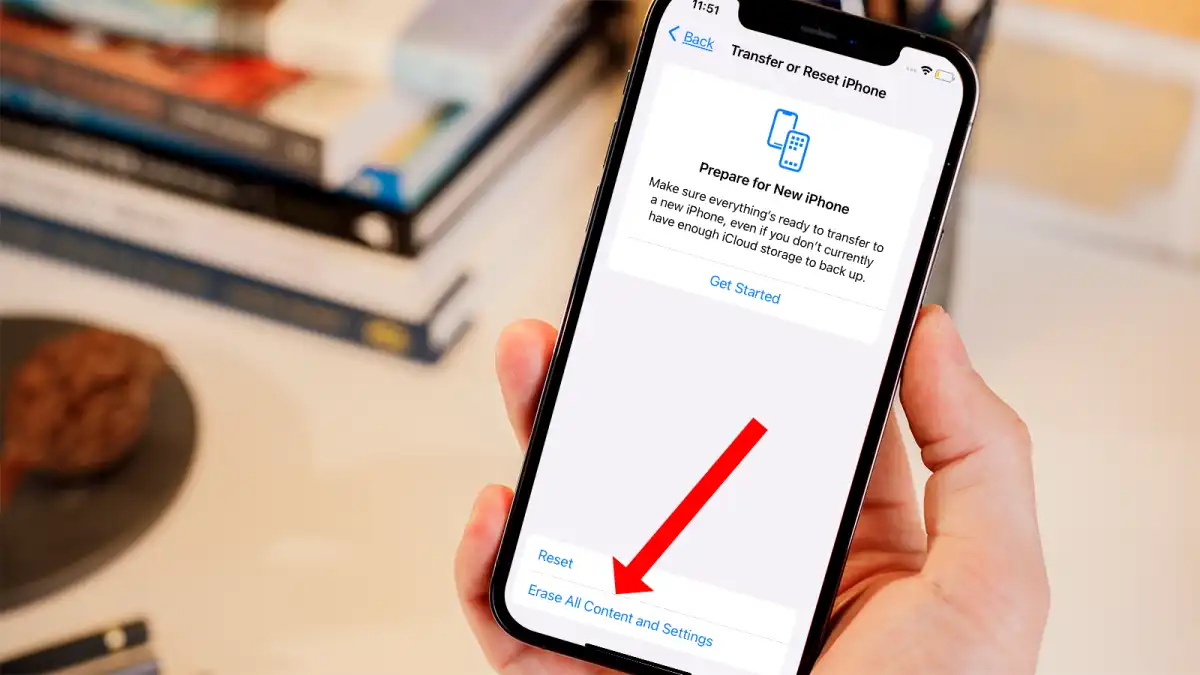
To start, open the Settings app on your iPhone and tap General. Scroll down until you see the option called Transfer or Reset iPhone. Once you open this section, tap Erase All Content and Settings. The system may ask for your passcode or Apple ID password for security verification. After confirming, the iPhone will begin removing all personal data and resetting the system to factory condition. During this stage, the Apple logo may appear several times while the device processes the reset.
The reset duration depends on how much storage is used on the device. Phones filled with thousands of photos and videos may take longer than newer or lightly used devices. Once the reset finishes, the iPhone will restart automatically and display the setup screen that appears on brand-new Apple devices. From here, you can either restore your backup or set up the device as completely new.
Steps to Reset Through Settings
- Open Settings
- Tap General
- Select Transfer or Reset iPhone
- Tap Erase All Content and Settings
- Enter passcode if requested
- Confirm the reset process
This method is commonly used by people searching for factory reset iPhone, erase all content on iPhone, or wipe iPhone data safely.
How to Factory Reset iPhone Without a Passcode
Sometimes users forget their passcode or buy a second-hand iPhone that is locked. In these situations, you cannot access the Settings app normally. Fortunately, Apple provides another option called Recovery Mode, which allows the iPhone to be restored using a computer. This method is especially useful for disabled devices that show messages such as “iPhone Unavailable” or “Connect to iTunes.”
To begin, connect the iPhone to a Mac or Windows computer using a USB cable. Open Finder on Mac or iTunes on Windows. The next step depends on your iPhone model. On iPhone 8 and newer models, quickly press the Volume Up button, then the Volume Down button, and finally hold the Side button until Recovery Mode appears. For iPhone 7 models, hold the Volume Down and Power buttons together. Older models require holding the Home and Power buttons simultaneously.
Once Recovery Mode appears, your computer will display options to Update or Restore the device. Select Restore. The system will download the latest iOS software and erase the phone completely. This process can take some time depending on internet speed and device condition. After completion, the iPhone will restart and display the setup screen again.
Situations Where Recovery Mode Helps
| Problem | Solution |
| Forgotten passcode | Restore through Recovery Mode |
| Disabled iPhone | Erase and reinstall iOS |
| Frozen Apple logo | Complete system restore |
| Failed software update | Install fresh iOS version |
Many users searching for reset locked iPhone, restore disabled iPhone, or factory reset iPhone without password use this method successfully.
How to Factory Reset iPhone Using iCloud
There are situations where you may not physically have your iPhone with you. Perhaps the phone was lost, stolen, or left somewhere temporarily. In these cases, Apple allows users to erase the device remotely through iCloud. This feature protects your personal information and prevents strangers from accessing your private data. However, Find My iPhone must already be enabled before the device goes missing.
To use this feature, sign in to your Apple account from another device and open the Find Devices section. Select your iPhone from the device list and choose the option called Erase iPhone. Once confirmed, the system will remotely remove all data from the device the next time it connects to the internet. This includes photos, messages, saved passwords, and payment information.
Remote erasing is extremely useful for protecting sensitive information. Imagine losing your phone in a public place while banking apps, email accounts, and personal photos remain accessible. A remote factory reset immediately reduces security risks and protects your identity. Businesses also use this feature to protect company data stored on employee devices.
Benefits of Remote Factory Reset
- Protects sensitive information
- Prevents unauthorized access
- Removes saved payment details
- Secures personal photos and files
- Helps protect business devices
This method is commonly associated with searches like erase iPhone remotely, factory reset lost iPhone, and wipe stolen iPhone safely.
Common Problems During an iPhone Factory Reset
Although Apple makes the reset process straightforward, some users still encounter problems along the way. One of the most common issues is the iPhone freezing during the reset process. This may happen because of software corruption, storage problems, or interrupted updates. In most cases, a force restart solves the issue quickly.
Another common problem involves Activation Lock. After the reset finishes, the iPhone may request the original Apple ID credentials before allowing setup. This security feature prevents stolen phones from being reused. If you purchased a second-hand device and the previous owner did not remove their Apple account, you must contact them to remove the device from their account remotely.
Some users also report that the reset option appears greyed out inside Settings. This usually happens because of Screen Time restrictions, company management profiles, or system bugs. Updating the device software or disabling restrictions often fixes the issue. If problems continue, Recovery Mode remains the most reliable solution.
Force Restart Instructions
| iPhone Model | Restart Combination |
| iPhone 8 or newer | Volume Up → Volume Down → Hold Side button |
| iPhone 7 series | Hold Volume Down + Power |
| iPhone 6s or older | Hold Home + Power |
Understanding these issues in advance makes the reset process much less stressful.
Difference Between Soft Reset and Factory Reset
Many people mistakenly believe that restarting an iPhone is the same as resetting it, but there is a major difference between the two. A soft reset simply restarts the device and refreshes temporary processes running in the background. It is commonly used when apps freeze or the phone responds slowly. Importantly, a soft reset does not erase any data, settings, or applications.
A factory reset, however, completely wipes the device and restores default settings. It removes personal files, accounts, apps, and saved information permanently unless backed up beforehand. This process is more powerful because it eliminates deeper software problems that cannot usually be fixed through normal restarting.
Knowing the difference is important because many users accidentally perform a factory reset while only trying to reboot their phone. Understanding both options helps you choose the right solution depending on the problem you are facing.
Quick Comparison
| Feature | Soft Reset | Factory Reset |
| Deletes personal data | No | Yes |
| Removes apps | No | Yes |
| Fixes major software issues | Sometimes | Yes |
| Requires backup | No | Yes |
| Restores default settings | No | Yes |
FAQs
Does factory reset remove everything from the iPhone?
Yes, a factory reset removes all apps, settings, files, messages, photos, and personal information stored on the device.
Will resetting an iPhone improve performance?
In many cases, yes. Resetting removes corrupted settings and unnecessary files that may slow down the system.
Can I recover data after a factory reset?
Only if you created a backup before resetting the device.
Is factory reset safe for iPhones?
Yes. Apple designed the process specifically to restore devices safely and securely.
How long does a factory reset take?
Most resets finish within five to twenty minutes depending on storage usage and device condition.
Conclusion
Learning how to factory reset iPhone is essential for every iPhone user because it helps solve software problems, protect personal information, and improve device performance. Whether you are resetting the phone before selling it, fixing serious system errors, or starting fresh with a clean setup, following the correct steps ensures the process is safe and successful. Always remember to back up your data first, sign out of your Apple account, and carefully choose the right reset method for your situation. A properly reset iPhone often feels faster, cleaner, and more reliable, making the entire process worthwhile.
