

If your iPhone has become slow, keeps freezing, runs out of storage, or shows constant software issues, learning how to factory reset iphone properly can completely change your experience. Many users think they need to buy a new phone when their current device starts lagging, but in reality, a simple reset can often restore speed, improve battery life, and remove unwanted software problems. A factory reset wipes all personal data, settings, applications, and saved information from the device, returning it to the same condition it was in when it first came out of the box. This process is especially useful before selling your phone, giving it to another person, or troubleshooting serious issues that normal fixes cannot solve. However, resetting an iPhone without understanding the proper steps can lead to accidental data loss or activation problems. That is why this guide explains everything in clear and simple English so even beginners can follow it without confusion. By the end of this article, you will understand how to perform an iphone reset, protect your personal information, create backups safely, restore your data later, and avoid the most common mistakes that many users make during the reset process.
Why People Choose to Factory Reset iPhone
There are many different reasons why users decide to perform a complete factory settings reset on their iPhone. Some people notice their device becoming extremely slow after years of usage, while others experience repeated app crashes, software bugs, frozen screens, or storage problems that never seem to disappear. In many situations, temporary troubleshooting methods only provide short-term relief, but a full reset gives the phone a fresh start by clearing unnecessary files, corrupted settings, and hidden system problems. People also reset their iPhones before selling or trading them because personal data such as passwords, photos, banking apps, contacts, and messages remain stored inside the device unless properly erased. Businesses often factory reset company phones before assigning them to new employees for security reasons. Even technology experts recommend resetting a phone occasionally if performance has significantly declined over time. A proper erase iphone process not only protects privacy but can also improve overall responsiveness and reduce system lag. Users are often surprised by how much faster and cleaner their device feels after completing a full reset and reinstalling only the apps they truly need.
Common Reasons for Resetting an iPhone
- Fix software bugs and glitches
- Improve slow performance
- Remove unwanted files
- Clear full storage
- Solve app crashing problems
- Prepare device for resale
- Remove viruses or malware
- Restore factory settings
- Start fresh after iOS updates
| Problem | Possible Benefit of Reset |
| Slow speed | Faster performance |
| Freezing apps | Stable software |
| Battery drain | Better optimisation |
| Storage issues | More available space |
| Phone crashes | Cleaner operating system |
Important Things to Do Before You Reset iPhone
Before beginning the iphone factory restore process, you should take several important precautions to avoid losing valuable information. A factory reset permanently deletes everything stored on the device unless you create a backup first. Many people rush into resetting their phone without preparing properly and later realise they lost years of photos, messages, contacts, or important documents. The safest approach is to back up all your information using iCloud or a computer before starting the reset. This backup allows you to restore your personal files later after the reset is complete. Another essential step is signing out of your Apple ID because Apple’s Activation Lock security feature can prevent future access to the device if the account remains connected. You should also ensure your iPhone has enough battery power before starting because interruptions during the reset process can sometimes create software complications. A stable internet connection is equally important, especially when restoring backups or reactivating the phone after resetting it. Taking a few extra minutes to prepare properly can save hours of frustration later and makes the entire iphone data wipe process much smoother and safer.
Checklist Before Factory Resetting
- Back up photos and videos
- Save important passwords
- Sign out of Apple ID
- Disable Find My iPhone
- Charge battery above 50%
- Connect to stable Wi-Fi
- Remove SIM card if needed
Backup Options
| Backup Method | Advantages |
| iCloud Backup | Automatic and simple |
| Computer Backup | Full local storage |
| External Storage | Extra safety |
| Cloud Services | Easy photo recovery |
How to Factory Reset iPhone Using Settings
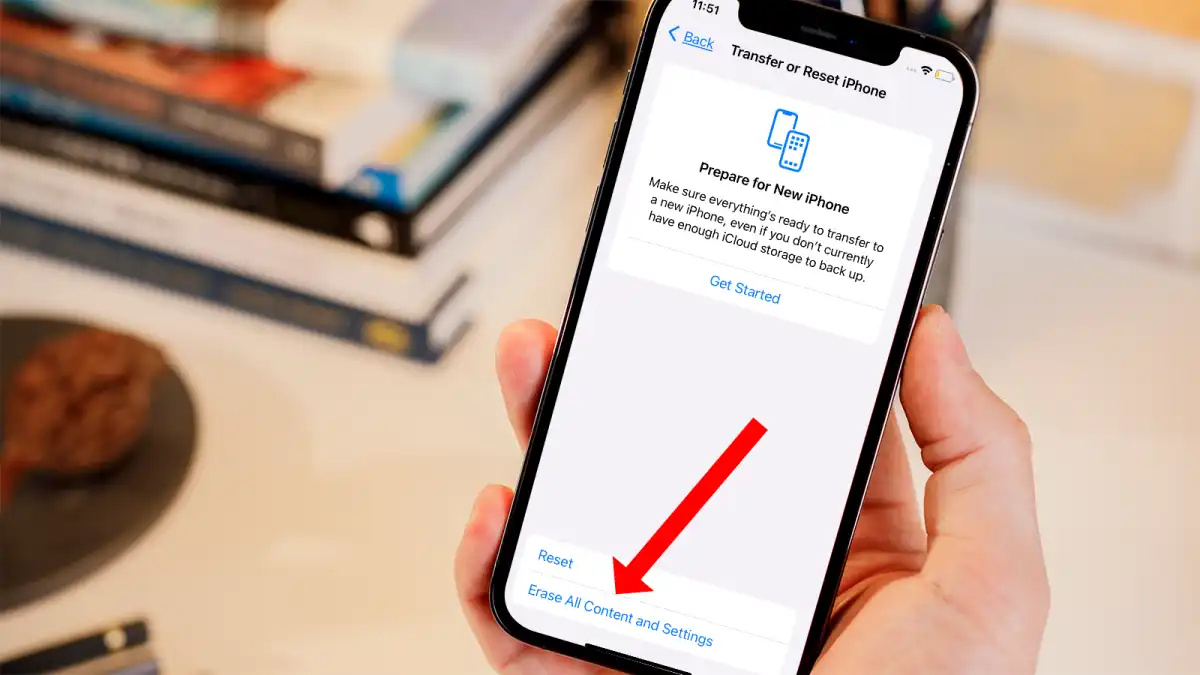
The easiest and most common way to complete a factory reset iphone process is directly through the Settings application. Apple designed this method to be simple enough for everyday users who may not have technical experience. Once the reset begins, the iPhone removes apps, media, personal files, passwords, and customised settings before returning to its original factory condition. Most users prefer this method because it does not require a computer, additional software, or advanced troubleshooting skills. However, it is still important to follow each step carefully to avoid accidental mistakes. If your phone is functioning normally and you still remember your passcode, this approach is usually the fastest and safest option available. After the reset finishes, the device will restart and display the same setup screen shown when the iPhone was first purchased. At that stage, you can either restore your backup or set up the device as completely new.
Step-by-Step Instructions
- Open the Settings app
- Tap General
- Scroll down to Transfer or Reset iPhone
- Select Erase All Content and Settings
- Enter your passcode
- Confirm the reset
- Wait for the iPhone to restart
What Gets Removed?
- Photos and videos
- Installed apps
- Messages and call history
- Saved passwords
- Apple Pay information
- Personal settings
- Downloaded files
| Data Type | Removed During Reset |
| Apps | Yes |
| Contacts | Yes |
| Photos | Yes |
| iOS Software | No |
| Apple ID | Removed after sign out |
How to Factory Reset iPhone Without a Password
Forgetting your iPhone passcode can feel stressful, especially when you urgently need access to the device or want to erase it before selling it. Fortunately, Apple provides a recovery method that allows users to perform an iphone restore even without entering the screen passcode. This method requires a computer with Finder or iTunes installed and uses Recovery Mode to reinstall the operating system completely. During this process, the iPhone connects to the computer and enters a special troubleshooting state where the software can be erased and restored from scratch. Although the steps vary slightly depending on the iPhone model, the overall process is straightforward once you understand the button combinations. It is important to remember that this method still removes all existing data from the phone, so recovery becomes impossible unless you already created a backup earlier. Many users use Recovery Mode when their device becomes disabled after entering the wrong passcode multiple times or when the phone gets stuck during software updates.
Recovery Mode Process
- Connect iPhone to a computer
- Open Finder or iTunes
- Enter Recovery Mode
- Select Restore iPhone
- Wait for software installation
- Set up device again
Recovery Mode Buttons
| iPhone Model | Button Combination |
| iPhone 8 and later | Volume Up → Volume Down → Hold Side Button |
| iPhone 7 Series | Hold Volume Down + Power |
| iPhone 6s and earlier | Hold Home + Power |
Understanding the Difference Between Restart, Reset, and Restore
Many iPhone users become confused by technical terms like restart, reset, restore, and recovery because they sound similar but actually perform very different tasks. Understanding these differences helps prevent unnecessary mistakes and ensures you choose the right solution for your specific problem. Restarting an iPhone simply turns the device off and back on again, which can temporarily fix minor glitches or frozen apps without affecting your personal data. Resetting settings removes custom preferences like Wi-Fi passwords and wallpapers but usually keeps your files and apps intact. A complete hard reset iphone process is more aggressive and forces the phone to reboot during serious freezing problems. Meanwhile, a full factory reset erases everything stored on the device and restores default factory settings. Finally, restoring an iPhone through a computer reinstalls the operating system itself and can fix deeper software corruption issues. Knowing when to use each option can save time, reduce frustration, and help avoid unnecessary data loss.
| Action | Main Purpose |
| Restart | Refresh temporary glitches |
| Reset Settings | Remove customised settings |
| Factory Reset | Erase all personal data |
| Restore iPhone | Reinstall iOS software |
| Hard Reset | Force reboot frozen phone |
Common Problems After a Factory Reset iPhone
Although most resets finish successfully, some users encounter issues after completing the process. One of the most common problems is Activation Lock, which appears when the previous Apple ID remains connected to the device. This security feature protects stolen phones but can create confusion if users forget their login details. Other people experience difficulties restoring backups because of weak internet connections, corrupted files, or insufficient storage space. Some apps may take time to redownload, especially if the backup contains large amounts of data. In rare situations, the iPhone may become stuck on the Apple logo or restart repeatedly after the reset. Fortunately, most of these issues have simple solutions if handled patiently. Restarting the device, reconnecting to Wi-Fi, updating iOS, or restoring the backup again often solves the problem. Users should avoid panicking during the setup stage because large backups sometimes require several hours before every photo, message, and application fully returns to the device.
Problems Users May Face
- Activation Lock screen
- Backup restoration failure
- Missing apps or photos
- Wi-Fi connection issues
- Battery drain after setup
- Device stuck on Apple logo
Quick Solutions
- Restart the phone
- Use stable internet
- Update iOS software
- Restore backup again
- Verify Apple ID credentials
- Reset network settings
| Issue | Possible Fix |
| Apple logo stuck | Recovery Mode restore |
| Activation Lock | Correct Apple ID login |
| Missing data | Reinstall backup |
| Wi-Fi problems | Reset network settings |
How a Factory Reset iPhone Can Improve Performance
One major reason users perform a complete iphone cleanup is to improve device speed and overall performance. Over time, iPhones collect temporary files, cached app data, background processes, corrupted settings, and unnecessary downloads that gradually slow the system down. Even though Apple devices are known for long-term reliability, years of heavy usage can still affect responsiveness. Apps may begin opening slowly, animations can feel laggy, and multitasking may become frustrating. A full reset clears accumulated digital clutter and allows the operating system to function more efficiently again. Many users report noticeable improvements immediately after resetting their phone and reinstalling only the applications they actually use. Battery life may also improve because unnecessary background activity disappears after the reset. While resetting is not a magical solution for damaged hardware, it can significantly extend the usable lifespan of an older device by giving the software environment a completely fresh start.
Benefits of Resetting
- Faster app loading
- Better battery optimisation
- Smoother navigation
- More free storage
- Reduced lag and freezing
- Improved software stability
| Before Reset | After Reset |
| Slow opening apps | Faster response |
| Frequent crashes | Stable performance |
| Full storage | More free space |
| System lag | Smoother experience |
Security Benefits of an Erase All Content and Settings Process
Protecting personal information should always be a top priority before giving away, selling, or recycling an iPhone. Modern smartphones contain highly sensitive data including banking details, private conversations, saved passwords, business emails, personal photos, location history, and social media accounts. If a device is not erased correctly, someone may still recover parts of that information using advanced recovery tools. A complete erase all content and settings process reduces this risk by securely removing personal files and disconnecting the device from your Apple account. Security experts strongly recommend signing out of Apple ID and disabling Find My iPhone before erasing the device because these steps help prevent future activation problems for the next owner. Businesses and organisations also rely on factory resets to protect confidential information when employees change devices. Even if you are simply storing an old phone in a drawer, securely wiping personal data remains a smart precaution.
Important Security Steps
- Remove saved passwords
- Sign out of Apple ID
- Disable Find My iPhone
- Erase personal files
- Remove payment methods
- Delete sensitive documents
Data That Could Be Exposed
| Sensitive Information | Risk if Not Erased |
| Banking apps | Financial theft |
| Saved passwords | Account hacking |
| Emails | Privacy exposure |
| Photos | Personal data leak |
| Contacts | Identity misuse |
Should You Reset or Replace Your iPhone?
When an iPhone becomes frustrating to use, many people immediately assume they need to purchase a new device. However, a complete iphone system reset can often solve many performance issues without spending hundreds of pounds or dollars on an upgrade. If your battery health is still acceptable and the hardware remains physically functional, resetting the phone may restore enough speed and stability to continue using it comfortably for months or even years. Storage overload, outdated app data, corrupted settings, and software conflicts are common causes of poor performance that a reset can eliminate effectively. On the other hand, devices with severe hardware damage, broken screens, overheating issues, or unsupported iOS versions may truly require replacement. Technology experts often recommend attempting a factory reset before investing in a new phone because it is free, relatively quick, and surprisingly effective in many situations. Users are frequently amazed at how refreshed their older device feels after starting with a clean installation.
Reset Your iPhone If
- Apps crash constantly
- Storage remains full
- Phone feels unusually slow
- Bugs started after updates
- Battery drains because of software
Replace Your iPhone If
- Hardware is damaged
- Battery health is extremely poor
- Device overheats regularly
- iOS updates no longer supported
- Repairs cost too much
FAQs
Does a factory reset remove viruses?
Yes, a complete factory reset usually removes malware, harmful software, and corrupted files from the device.
Will I lose all my photos?
Yes, unless you create a backup before starting the reset process.
How long does a reset take?
Most factory resets finish within 10 to 30 minutes depending on storage size and device condition.
Can I reset my iPhone without a computer?
Yes, you can perform a reset directly through the Settings app if you know your passcode.
Does factory resetting improve battery life?
In many cases, yes. Software-related battery drain often improves after resetting the phone.
Conclusion
Learning how to factory reset iphone correctly is one of the most useful skills for any iPhone user. Whether you want to improve performance, fix software issues, protect personal data, or prepare your device for resale, a factory reset provides a powerful fresh start. By following the correct preparation steps, creating backups, and understanding the reset process clearly, you can complete everything safely without stress. If your iPhone has become slow or unreliable, a clean reset may be exactly what it needs to feel fast and responsive again. Share this guide with other iPhone users and keep it saved for future troubleshooting and maintenance.
